
Easy Leaderboard Simple Setup
To experience our #Leaderboard, copy/paste or type this into your browser: ggo.mobi/lb/OBdemo
Leaderboards are a huge value-add, included with Greater Giving Mobile Bidding.
Question: What is the Greater Giving Leaderboard?
Answer: It’s a link sent to you to display on a screen at your event.
Question: How can it be displayed?
Answer: On anything with a screen (e.g. TV, Desktop Screen, Projector, etc.)
Since Greater Giving charges no extra fees to have multiple leaderboards, it’s common for groups to have multiple screens displaying the leading bids scattered throughout the event.
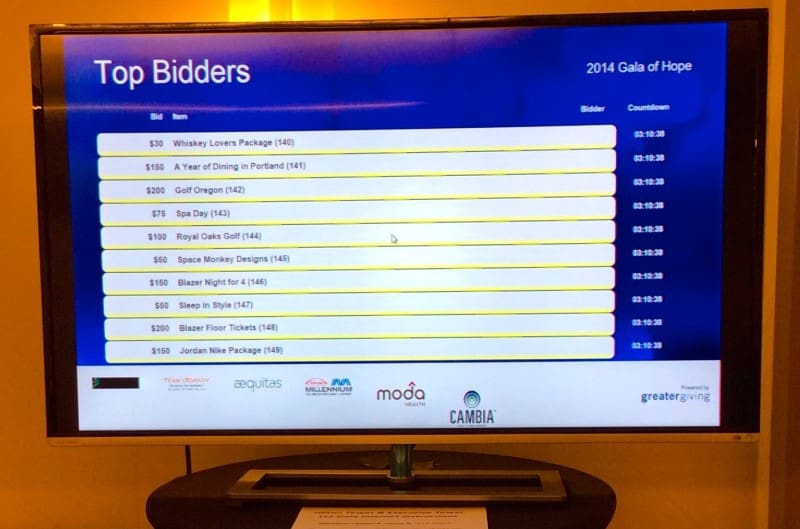 This Top Bidder Leaderboard example updates in real time: who is winning on a package and which packages have no bids. The competitive real time updates are displayed on the screen, resulting in driving up bid and event totals.
Since your sponsor’s logos automatically show up on the leaderboard display, the logos will update as you add them to your Greater Giving Online database.
Getting a Greater Giving Leaderboard setup is very easy to do in 3 simple steps:
- Choose your Leaderboard Style – With a few options it’s up to your team to choose what leaderboard style you want to setup. Greater Giving lets you choose from a few options including: “Loop All Packages by Closing”, “Loop All Packages by Number”, “Loop Open Packages by Closing”, “Loop Open Package by Number”, “Loop Unbid Items”, or “Loop by Package Class” {Choose any Class}.
- Choose your Settings – Set your loop interval for how quickly you want the screen to change. Also, select your display for how many packages will show up on the screen at the same time. (Example: loop every 10 seconds and display 10 Packages at a time) Lastly, you can customize the background color.
- Get the Leaderboard Link – Greater Giving’s Mobile Bidding Leaderboard is simply a URL. This web link comes from the admin section of Mobile Bidding. To get it, go to the Admin Screen and click on “Load Leaderboard Looping Display”. Once you have the leaderboard up and running, any changes you make will automatically update. For example, if you wanted to change your leaderboard to show only “Unbid Items”, simply go back to step 1, select “Loop Unbid Items”, and then click “Update” to see the change.
Now that your leaderboard is setup, the next step is displaying the customized link. Your leaderboard can be displayed in a few different ways:
- Laptop and TV – Setting up a Laptop in conjunction with a display TV or computer monitor is an easy and common way leaderboards are setup. Set the display to be used as a 2nd screen or to mirror the desktop so it shows what you’re seeing on the computer. You can use a serial port or an HDMI cable. Laptop and TV leaderboard displays are common in the Silent Auction room or in the lobby of an event. Many hotel venues have these built in and will let you use them for free. If possible, discuss this option with your venue contact before signing your agreement, to ensure you don’t have to pay an extra fee to use them.
- Projection display – Using a laptop, pull up the leaderboard link. The projector, which works just like the display TV, will show what’s on your computer. The key difference is that your projection will appear on a large wall or screen. This is a good format to use in large ball rooms or during the dinner section of your auction/event.
- Smart TV – Many smart TVs are setup with Wi-Fi and some have web browsers. Type or Paste the URL into the browser to see your leaderboard on the screen.